
How to export Instagram comments to CSV
Bring a post’s conversation into a spreadsheet. Here’s how to connect your Instagram account, choose the right post, and export the comments Meta makes available.
An Instagram post can collect useful questions, suggestions, and feedback long after you publish it. Exporting those comments to CSV gives you a file you can review in a spreadsheet, share with the right colleagues, or use while preparing a report.
With Comment Export Tool, you choose an Instagram account you manage and a specific post. The export runs in the background, then appears in your library for preview and download.
What you need before connecting
- An Instagram professional account, such as a business or creator account.
- A Facebook Page linked to that Instagram account.
- A Facebook login with the necessary access to the Page and linked account.
This tool uses Meta’s Facebook Login connection for Instagram. Personal Instagram accounts and accounts that are not linked to a Facebook Page are not supported by this connection. It also does not let you export comments from any public profile simply by entering a username. Meta describes the different connection types in its Instagram Platform overview.
1. Sign in and connect the linked Page
Open Comment Export Tool and choose Continue with Facebook. Use the Facebook identity that has access to the Page linked to your Instagram account.
After signing in, choose Connect pages in the dashboard. Review Meta’s authorization prompts and grant access to the Page and linked professional account you want to use. Signing in alone does not import your social content; this separate connection is what authorizes that access.
You do not need to give Comment Export Tool your Instagram password. Authentication happens through Meta, and the app uses the permissions you authorize to retrieve available content.
2. Select Instagram and find the post
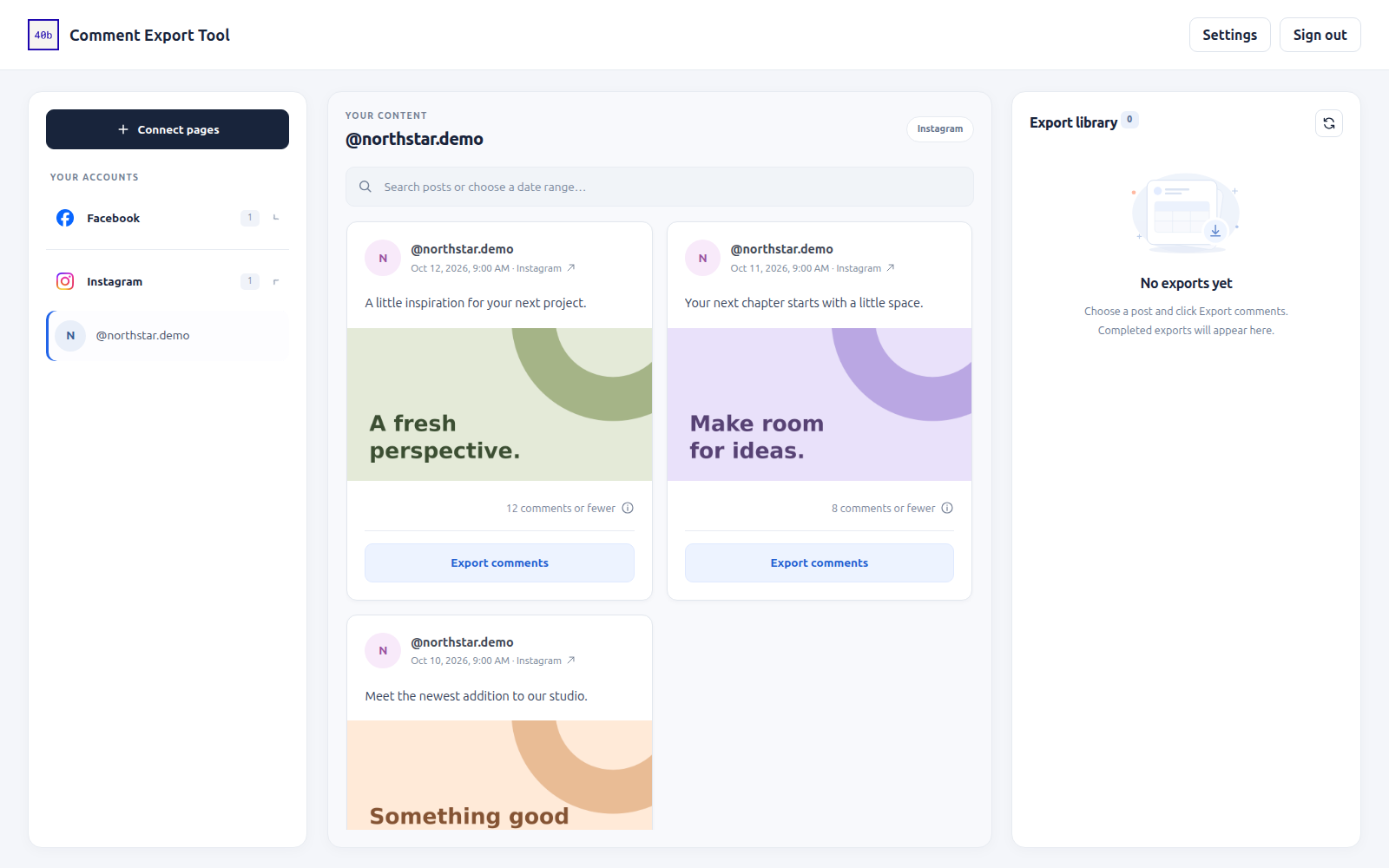
Expand Instagram in the left sidebar and select your account’s username. Its posts appear in the middle of the workspace, with the export library on the right.
Choose the post you want to review. To narrow the list, open Search posts or choose a date range…, enter a caption keyword or select dates, and apply the filter. Check the account, caption, and date so you export the intended conversation.
3. Start the comment export
Choose Export comments on the post. A job appears in the export library, where you can follow its status. A large thread can take longer to retrieve, especially when it includes replies.
Leave the job to finish instead of repeatedly starting the same export. Comment counts can be approximate, and the number of rows ultimately available depends on Meta’s responses and the permissions on the connection.
4. Preview the result and download the CSV
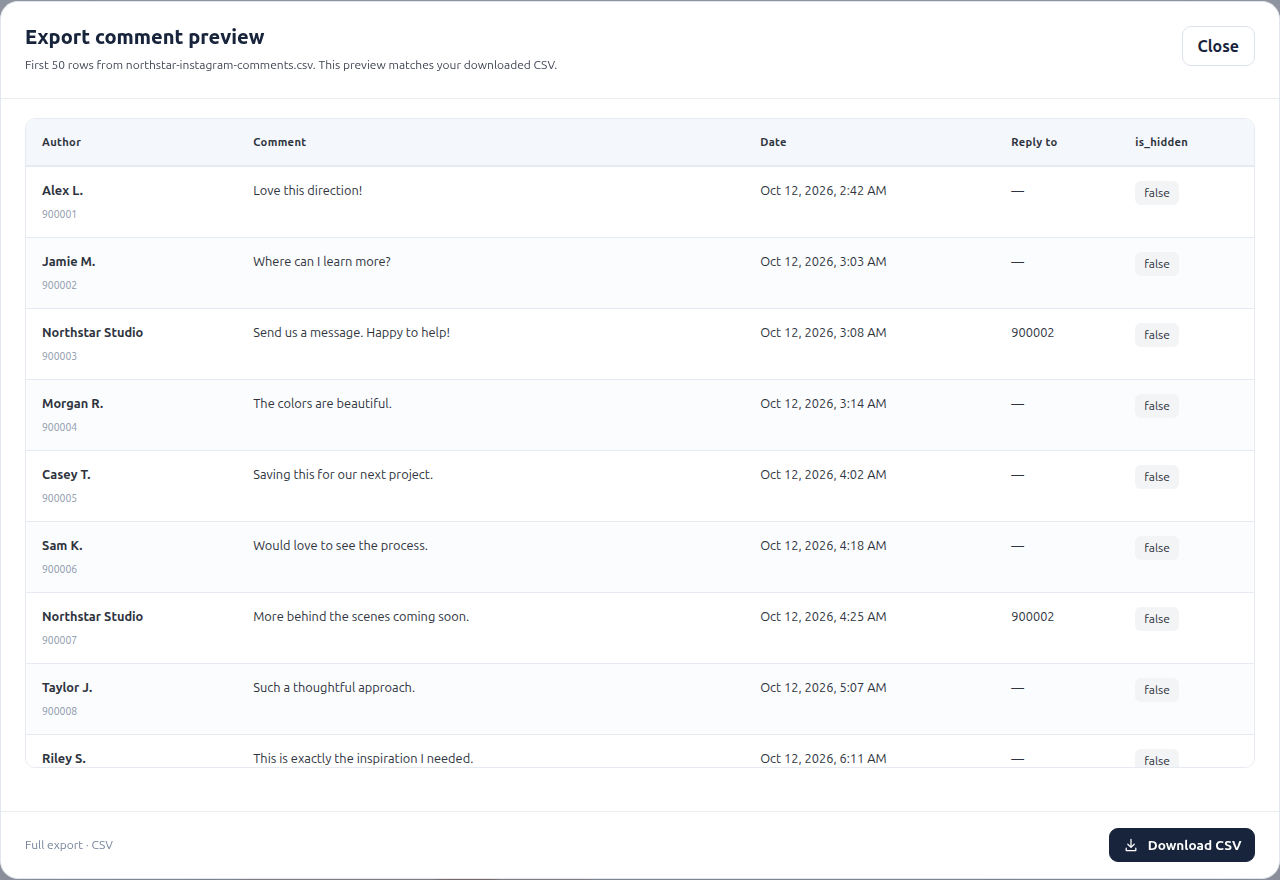
When the export is complete, choose Preview in the library. Check a few rows to confirm that the file contains the conversation you expected, then choose Download CSV.
The export includes available comment text, author information, timestamps, and reply relationships. A reply’s parent reference helps you understand which comment it belongs to. Fields such as usernames are subject to what Meta returns; a missing name does not necessarily mean a row is missing.
If your account or comments do not appear
- No Instagram account in the sidebar? Check that it is a professional account linked to the Facebook Page you authorized. Confirm that you signed in with the Facebook identity that has the required Page access.
- Access expired or permissions changed? Reconnect through Connect pages and review the access Meta grants.
- Cannot find an older post? Try its caption text and a date range covering when it was published. Clear the filter if it excludes the post you need.
- Fewer comments than expected? Review what Meta makes available to the connection. The tool cannot recover deleted comments, bypass access restrictions, or guarantee that every displayed engagement count becomes an export row.
Keep the exported conversation private
A CSV can contain other people’s words and usernames. Keep it in a restricted workspace, share it only with the people who need it, and remove identifying information from summaries when it is not necessary.
Comment Export Tool stores export files privately for preview and download, with cleanup scheduled once they are seven days old. Cleanup runs in the background. Your downloaded copies remain under your control, so delete them when the work is finished.
Use Disconnect accounts to remove your connected grants and stored exports when you no longer need the connection. For full account deletion and other details, see our Privacy policy and deletion instructions.
Take your Instagram comments with you.
Connect the professional account you manage and choose a post to export.
Open Comment Export Tool Exporting Facebook comments instead?