
How to export Facebook comments securely
A useful export starts with the right access—and ends with a file you handle carefully. Here’s a straightforward way to do both with Comment Export Tool.
Facebook comments can be useful for reviewing customer questions, preparing a campaign report, or keeping track of feedback. A CSV makes those conversations easier to work with in a spreadsheet. It can also contain people’s names and the things they wrote, so it deserves the same care as any other file containing personal information.
This guide covers posts on Facebook Pages you are authorized to manage. Comment Export Tool is not a way to collect comments from arbitrary Pages, personal profiles, or private groups.
Before you start
- Use the Facebook account that has the necessary access to the Page.
- Know which post you need and why you need its comments.
- Decide where the downloaded file will live and who actually needs access to it.
1. Sign in through Facebook and connect your Page
Open Comment Export Tool and choose Continue with Facebook. If Facebook does not supply an email address, the app asks you to finish your profile.
Signing in creates your account; connecting content is a separate step. In the dashboard, choose Connect pages. Review Meta’s authorization prompts and select the Page access you want to grant. Connect only the Pages needed for the work you are doing.
Enter your Facebook password only on Facebook’s own sign-in page. Comment Export Tool does not receive or store that password. Keep access tokens private, too: they authorize API access and should never be pasted into a support chat or included in an export you share. Meta’s access-token guide explains their role.
2. Choose the Page and the right post
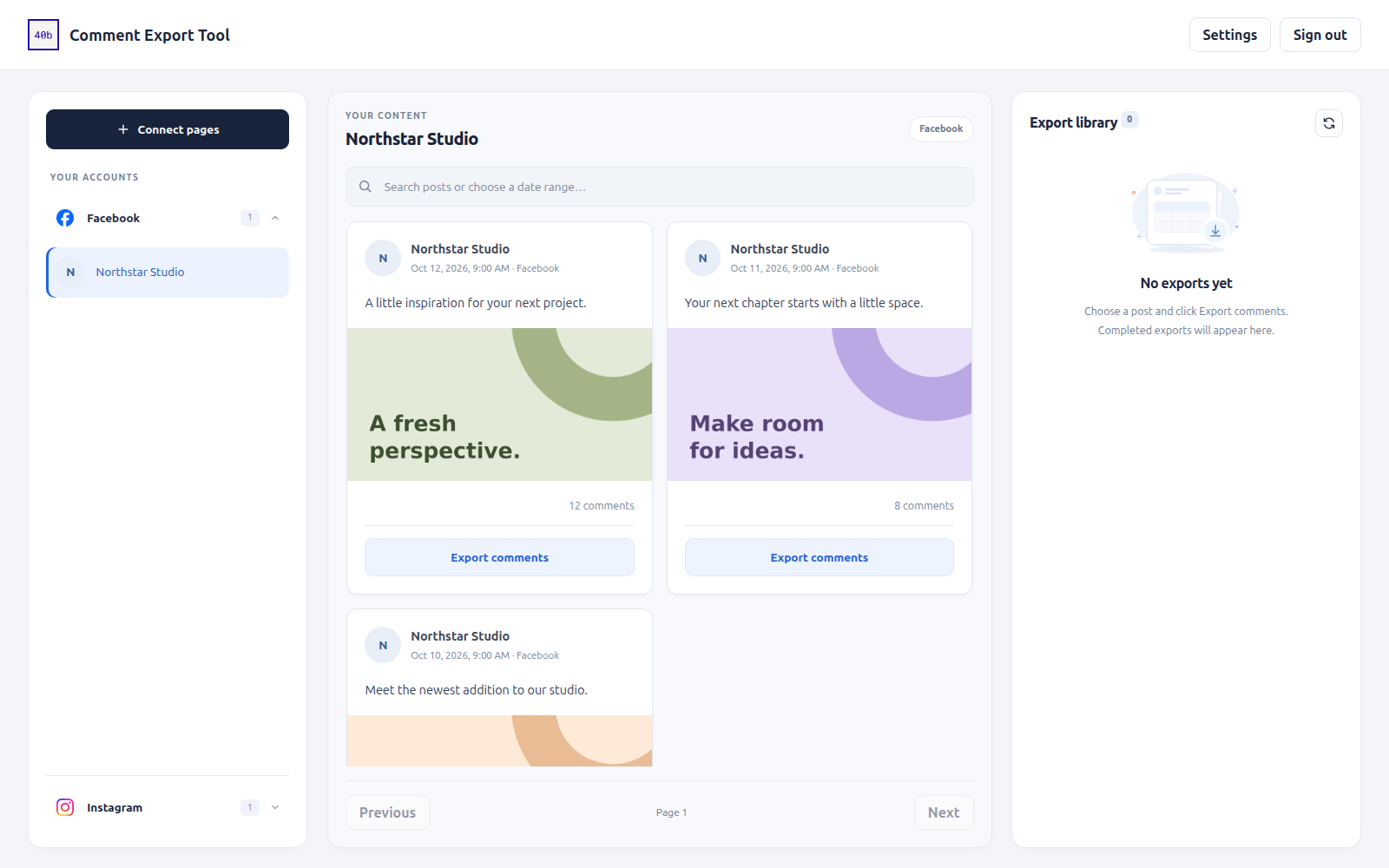
Select the Facebook Page in the left sidebar. Its posts appear in the middle of the workspace. Use the search field to find a post by text or open the date filter to narrow the range.
Check the post’s caption and date before starting an export. Choosing one relevant post helps keep your file focused and avoids collecting conversations you do not need.
3. Export, then check the preview
Choose Export comments on the post. The job appears in the export library on the right. Larger threads can take longer, so follow its progress there rather than repeatedly starting the same export.
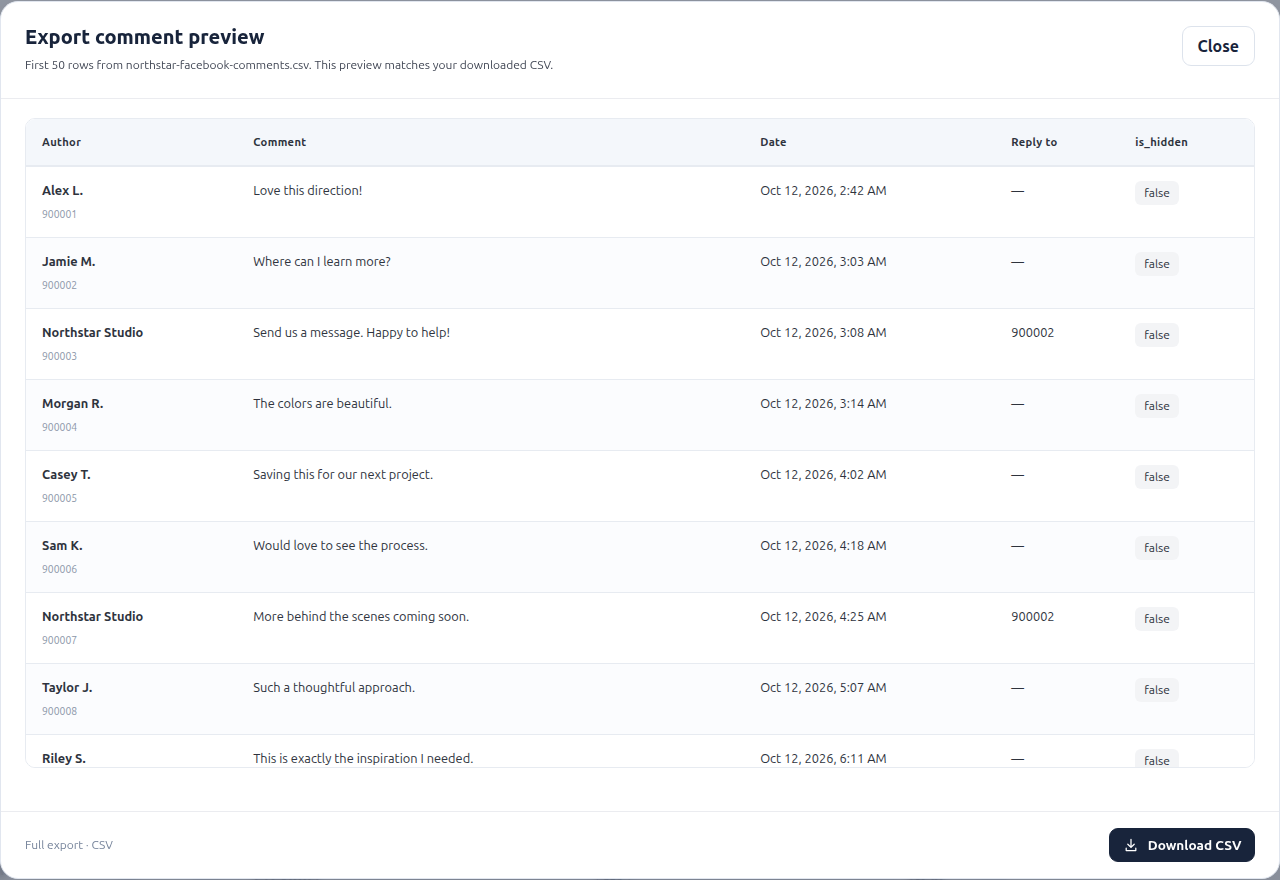
When the export is complete, open Preview. Check that you chose the intended post and that the available comments and replies match what you expected. Author names and other fields depend on what Meta makes available; do not assume every name or every source field will be present.
Choose Download CSV when you are ready to save the file. Open it in a trusted spreadsheet application and review the contents before using them in a report.
4. Keep the downloaded CSV private
Use a folder or workspace with access restricted to the people who need the export. Avoid public share links, open chat channels, and attachments sent to a long recipient list.
If a colleague only needs a few examples or a summary, consider sharing that smaller result instead of the entire comment file. Remove unnecessary identifying details from reports, and delete downloaded copies when the work is finished.
Being able to export a comment does not give you unlimited rights to sell, republish, or reuse it. Respect the people involved, Meta’s applicable terms, and the purpose for which you obtained access.
5. Understand retention and disconnect when finished
Comment Export Tool stores CSV files privately on its server so you can preview and download them. Files and their export records are scheduled for cleanup once they are seven days old. Cleanup runs in the background, so removal is not guaranteed at an exact time.
You can use Disconnect accounts in the dashboard to remove your connected Facebook and Instagram grants and stored exports. This keeps your app sign-in profile; see the deletion instructions if you want your entire account removed.
Server-side cleanup cannot remove CSVs you already downloaded. You remain responsible for the copies on your devices and the ones you shared. Our Privacy policy describes storage and deletion in more detail.
A quick check before you share
- It is the right Page and post.
- You need the information for a specific task.
- The file contains only what the recipients need.
- Access is restricted, and you know when to delete your copies.
That is the aim: a useful export, with clear access and a sensible plan for what happens to the file next.
Ready to try your first export?
Connect a Page you manage and take a closer look at its comments.
Open Comment Export Tool How it works & FAQ